Getting Started
- Click
 to choose a local file to play.
 - Play/Pause audio using the Transport Toolbar above the editor.
- Click
 to insert a timestamp. Follow the timestamp with the transcribed text of the segment.
Editing the Transcript
Most of what you expect to work on a text editor such as Word or Google Docs should work on PaperEdit.
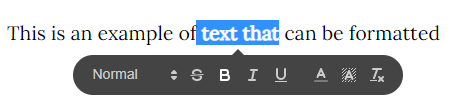
You can use Keybindings such as [ctrl+b] to make your text bold, or you can select a portion of text and style it using the popup menu:
You can find 2 buttons in the top left toolbar that will assist you with transcript editing:
 - Make striked sections barely visible so you can focus on the text that has not been cut out yet.
- - Insert the current audio playback position as a timestamp.
Playing Audio Files
PaperEdit can play audio files located in your computer. To do so you can always click and select Choose Audio to choose a new file to play.
Controlling Playback

Playback can be controlled via the transport buttons on top of the editor or using Keybindings
Skip Striked Sections
You can automatically skip cut sections during playback by enabling the  button on the toolbar. To the left of the button you can also see how long the edited audio currently is.